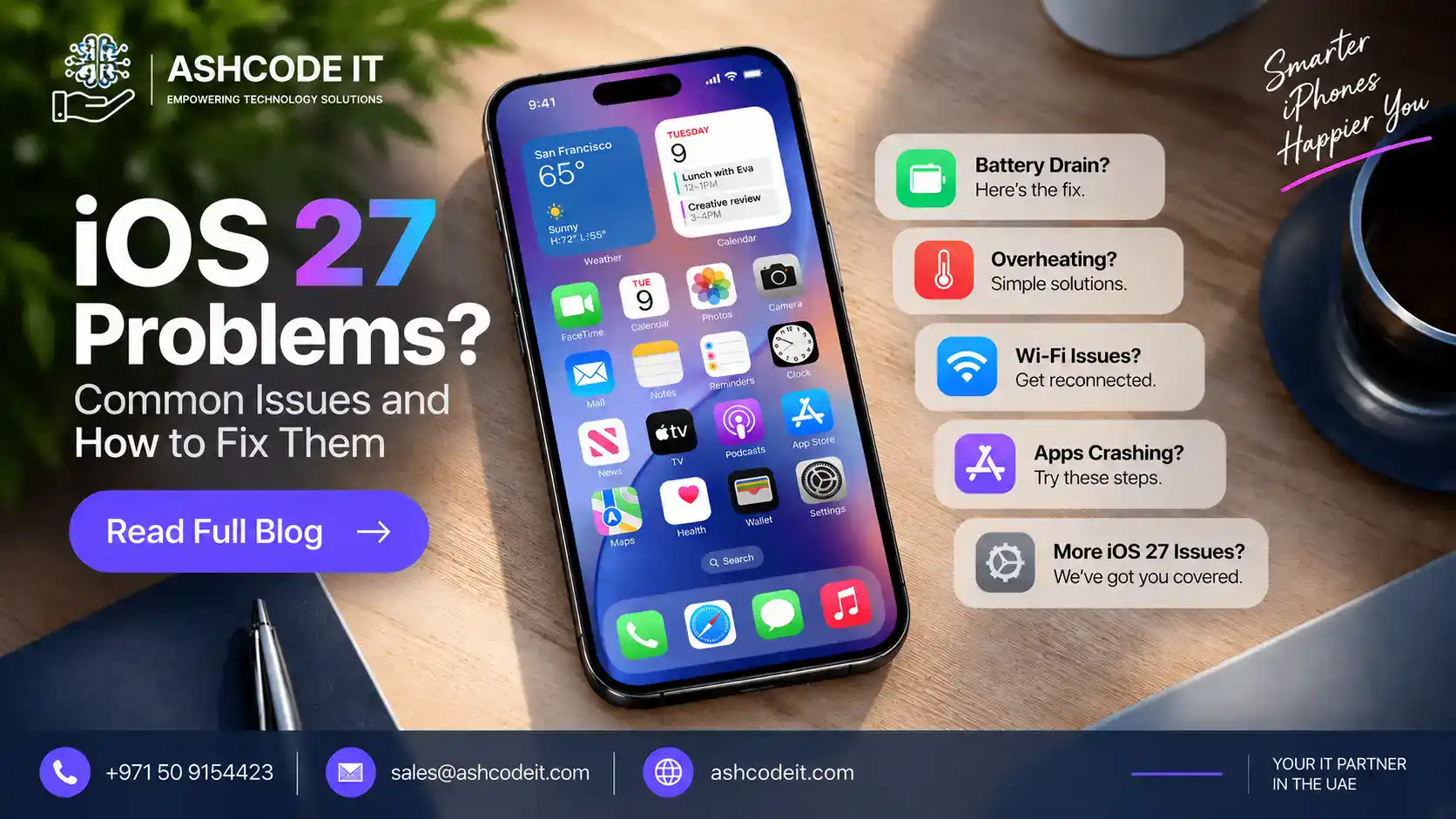
iOS 27 problems can appear after installing a major iPhone software update, particularly while the device is still completing background tasks. Common complaints after updates can include faster battery drain, heating, Wi Fi or Bluetooth connectivity trouble, app crashes, lag and features that appear unavailable.
Apple released iOS 27 on September 14, 2026, bringing Siri AI and a new generation of Apple Intelligence features alongside broader software improvements. Apple also notes that feature availability can depend on the iPhone model, language and region.
If your iPhone has not felt quite right since updating, try these fixes before considering more drastic troubleshooting.
1. iOS 27 Battery Drain
Battery drain is one of the first things users may notice after a major iOS update.
Your iPhone may temporarily consume more power because the system is completing update related activities in the background. Apple specifically advises that battery life can be lower for a few days after an update while these processes finish.
How to Fix iOS 27 Battery Drain
Go to:
Settings → Battery
Check which apps and system activities are consuming the most power.
You can also try enabling Low Power Mode, reducing screen brightness, using Auto Brightness and limiting unnecessary background activity.
If the problem appeared immediately after installing iOS 27, give the phone a few days before judging its long term battery performance.
2. iPhone Heating After iOS 27 Update
Is your iPhone warmer than usual after updating?
Some additional heat can occur while an iPhone completes background setup and update related processes. Battery intensive apps, gaming, navigation, video recording and charging can add to the heat.
Avoid demanding tasks while the phone is already hot and remove it from very warm environments.
Apple recommends using iPhone in ambient temperatures between 16°C and 22°C where possible and warns that using or charging it above 35°C can permanently reduce battery lifespan.
If overheating continues for several days during ordinary use, check for another software update and identify unusually power hungry apps under Battery settings.
3. Wi Fi Not Working on iOS 27
Another frustrating iOS 27 problem is Wi Fi refusing to connect, disconnecting unexpectedly or appearing connected without internet access.
Start with the simplest fixes:
Turn Wi Fi off and back on, restart the iPhone and restart your router.
If only one network has problems, test your iPhone with another Wi Fi network. This can help determine whether the problem is with iOS, the iPhone or the router.
VPNs and third party security software can also interfere with network connectivity in some circumstances. Apple recommends checking such software when troubleshooting persistent network problems.
4. Bluetooth Problems After iOS 27
AirPods, car audio systems, headphones, smartwatches and other Bluetooth accessories may occasionally need to be reconnected after a software update.
First open:
Settings → Bluetooth
Turn Bluetooth off, wait a few seconds and turn it back on. You can also restart both your iPhone and the accessory.
For persistent problems, forget the accessory and pair it again.
One useful detail is that tapping Bluetooth in Control Center does not completely disable Bluetooth. Apple explains that it disconnects most accessories while Bluetooth remains available for certain system features. To completely switch it off, use Settings → Bluetooth.
5. Apps Crashing or Not Opening
Some applications may close unexpectedly, freeze or refuse to launch correctly after updating to iOS 27.
This can happen when an app needs an update for compatibility with the latest operating system.
Apple recommends closing and reopening the affected app first. If that does not help, restart the iPhone and check the App Store for app updates.
If the problem remains, deleting and reinstalling the app can help, but make sure important app data is backed up first.
6. iOS 27 Feels Slow or Laggy
Does your iPhone feel slower after installing iOS 27?
Temporary sluggishness immediately after updating does not necessarily indicate a permanent performance issue. Background system processes may still be running.
Start by restarting your iPhone and installing any available app updates.
Also check:
Settings → General → iPhone Storage
Low available storage can affect the overall user experience, particularly when apps and system data are competing for space.
Older supported iPhones may also deliver a different experience from newer models because iOS 27 spans a wide range of hardware.
Apple currently lists iOS 27 compatibility from the iPhone 11 series and iPhone SE 2nd generation onward, including the latest iPhone models.
7. Siri AI Not Working on iOS 27
Siri AI is one of the biggest additions to iOS 27, but not every iPhone that supports iOS 27 supports Siri AI.
Apple says Siri AI requires an Apple Intelligence enabled device. Supported phones include iPhone 15 Pro, iPhone 15 Pro Max and iPhone 16 models or later, subject to supported language and regional availability.
Siri AI launched as a beta in English, with additional languages scheduled to follow. Some features also vary by country or region.
Therefore, Siri AI being unavailable does not automatically mean your iOS installation is broken.
Check your iPhone model, Siri language, device language and regional feature availability first.
8. iOS 27 Features Missing
You may update successfully but still be unable to find a feature shown in Apple’s iOS 27 demonstrations.
Again, this is not always an iOS 27 bug.
Apple explicitly states that some iOS and iPadOS features are unavailable in certain regions or languages. Hardware requirements can also restrict specific features.
Before troubleshooting, confirm that the feature supports your:
iPhone model + country or region + device language + Siri language
This is particularly important for Apple Intelligence and Siri AI features.
9. Mobile Data Not Working After iOS 27
If mobile data stops working after the update, first toggle Airplane Mode on and off and restart the iPhone.
Then verify that mobile data is enabled and that your carrier settings are correct.
If Wi Fi works normally but mobile data does not, the problem may be carrier related rather than an iOS 27 issue.
You should also check whether a VPN or third party network security application is affecting connectivity.
10. iPhone Charging Slowly After iOS 27
Charging speed can depend on several factors, including charger capability, cable condition, temperature and battery settings.
If the iPhone becomes too warm, iOS can limit charging to protect the battery. Apple notes that software may limit charging above 80% when recommended battery temperatures are exceeded.
Use a compatible charger and cable, keep the device away from excessive heat and check the charging port for obvious debris.
Quick Fixes for iOS 27 Problems
If you are experiencing several iOS 27 problems at the same time, work through these basic steps before resetting anything:
- Restart your iPhone.
- Go to Settings → General → Software Update and install the latest available iOS 27 update.
- Update all apps from the App Store.
- Check available iPhone storage.
- Review Battery settings for unusual activity.
- Test Wi Fi and mobile data separately.
- Temporarily troubleshoot VPN or third party security software if connectivity is affected.
- Back up important data before performing resets or more advanced troubleshooting.
Apple recommends keeping the device on the latest compatible software when troubleshooting several types of iPhone problems.
Should You Install iOS 27?
iOS 27 introduces Siri AI, expanded Apple Intelligence capabilities and other system improvements.
Major updates can also require apps and background processes to settle after installation. If your iPhone is compatible, keeping iOS and your apps updated generally gives you access to Apple’s latest fixes, features and security improvements.
If you depend heavily on a specific business or specialist app, checking that app’s compatibility before a major update is also sensible.